
01 The assistant panel
A chat panel that knows your R session — and, when you let it, can drive it.
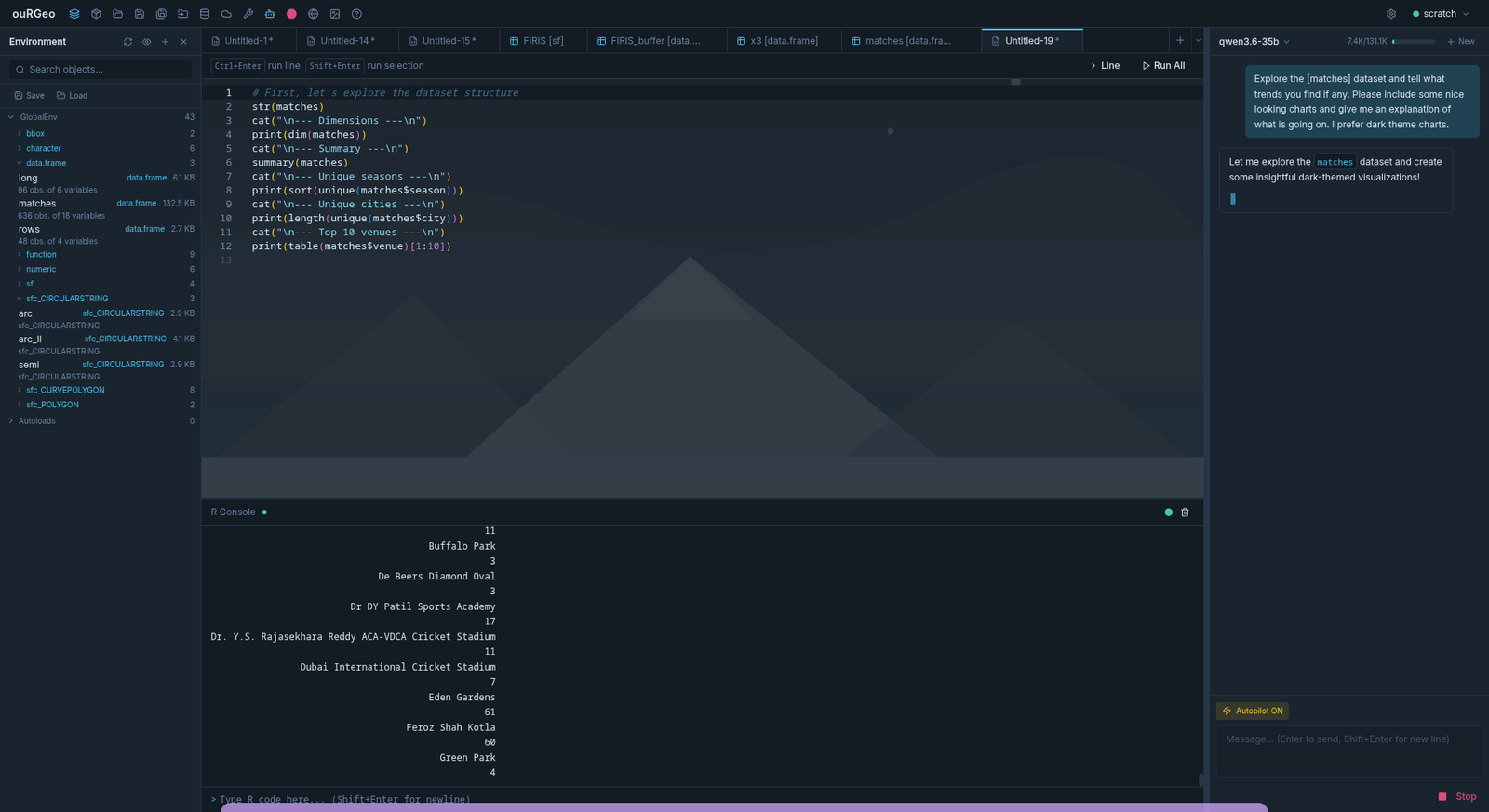
Open it with the AI Assistant button in the toolbar. Enter sends and Shift+Enter starts a new line. Everything the assistant runs is echoed to your R console like any other action, so it is inspectable, editable and recordable.
.ourgeoproj; in scratch they last until you leave it.What it can do
Beyond answering questions it can operate ouRGeo itself — open panels and dialogs, add layers, run toolbox tools (through the same data checks you get), write and run R Markdown, arrange and dock panes, build themes, and manage Project Files. It can walk you through a workflow in your own session, and point at a control and wait for you to click it rather than pressing it for you.
Actions are tiered. Navigation and reading are always allowed; anything that touches the R session or the filesystem needs Autopilot; destructive ones also ask you to confirm. Move any action between tiers from the gear beside the Autopilot switch.
02 Providers and models
ouRGeo is not tied to one vendor. Choose in Settings → AI Assistant → Provider & model, which also holds the model’s context window — lower it for a small local model, raise it for a large hosted one.
03 Thinking controls
The panel footer shows Thinking when the selected model has qualified reasoning controls. Choose a level before sending, or leave Provider default to let the service decide. The choice is remembered per provider and model on this computer; an API connection and a subscription stay separate even when the model names match.
| Provider | What the selector offers |
|---|---|
| OpenAI API and ChatGPT plan | The levels each recognised reasoning model supports — o3 offers Low, Medium and High; newer models may add Off, Minimal, Extra high or Maximum. Non-reasoning models such as GPT-4o have no control. |
| Anthropic API | The documented effort levels of effort-capable Claude models, with adaptive thinking where supported. |
| Claude subscription | The Claude Code CLI’s effort flag for supported models and the Opus/Sonnet aliases; your plan and CLI govern availability. |
| Gemini | Named levels on level-capable models. Gemini 2.5 shows a Thinking budget of 1,024, 4,096 or 8,192 tokens; Flash and Flash-Lite can also turn thinking off, Pro cannot. |
| Ollama (native) | Exactly the values your server reports for the model, including On/Off. Hidden if the server reports no capability. |
| Other local endpoints | Hidden until their reasoning settings can be reliably identified — an OpenAI-compatible interface alone is not evidence. |
Higher effort can take longer and use more tokens; the level is a request, and the provider may adapt it. Changes apply to new messages and their tool follow-ups. Private reasoning is never displayed, and a reply truncated mid tool call shows an error rather than running incomplete arguments.
04 What the assistant sees
It retrieves the context a request needs, rather than sending everything every time — and shows you what it used.
The assistant searches skills, action definitions, current layer schemas, console runs, open documents and project files when a request calls for them. An unrelated request — “generate 100 rows of dummy data” — does not wait on R inspection or carry workspace evidence it does not need. Context, in the panel footer and under Settings → AI Assistant → Learning & context, sets how deep the search goes.
The context summary under each reply
Expand the summary below an answer to see the sources selected for it, their revisions, where the request was sent, its delivery state and the estimated input size. Estimated prompt size is kept separate from the input, output, cache and reasoning usage the provider reports — and a failed or cancelled turn keeps the receipts that were available.
Browse current context sources searches the descriptions of everything the assistant could draw on, available and excluded, without reading their contents. From there you can Exclude source, or allow one again.
Attaching context
Attach context stages a layer schema, a console execution or the current document section for the next message; selected line ranges work in large documents too (up to 1 MB per span). Add files and Choose project files attach project files — a whole file, a PDF page, a section, a sheet range or a line range, up to three per message. Removing an attachment chip leaves the file in the library. Answers that use a document cite it, and clicking the citation opens that place.
05 Memory
The assistant remembers what you tell it to, in the scope you choose, and nothing is applied that you have not seen.
The Memory Library is in Settings → AI Assistant and below the assistant conversation. It keeps three scopes apart:
Adding a memory
Use Add a memory in any scope and choose Remember about you, Remember on project save or Remember for this conversation. Or just say it in the chat:
Remember that I prefer metric units.
Use miles for this project.
Both are handled by ouRGeo itself and do not run a model. Adding, correcting, moving and forgetting all work offline. “Forget…” opens the library so you choose exactly which memory goes — a model never picks it.
Managing memories
Learning
Settings → AI Assistant → Learning & context sets how memories are learned, separately for personal and project memory: Remember only when I ask, suggest (the default), or automatically remember narrow, declared preferences and decisions. Suggestions do nothing until you accept them in the library, and expire after 30 days. Learning uses local rules — no paid extractor runs. Learning from scratch conversations is off by default.
06 Privacy and sources
Settings → AI Assistant → Privacy & sources decides what the assistant may draw on.
While an exclusion applies, any assistant action that could bypass it — running R that could read the excluded data, for example — is paused. You can still use the interface and the R console yourself. Already transmitted content cannot be recalled from a provider.
In Project Files, clearing Available to the assistant excludes a file’s name, description and contents the same way.
07 Budgets and usage
Settings → AI Assistant → Budgets sets optional limits, separately from the model’s context window.
A request stopped by a limit shows BUDGET_LIMIT followed by which limit
was reached. Usage totals show the token receipts available for a conversation or
project; protected receipts survive chat deletion and restart, and anything missing
is labelled unknown rather than guessed.
08 File analysis models
Settings → AI Assistant → File analysis models gives project documents and images their own provider and model. Use assistant model keeps the usual behaviour; choose another and Apply to use a specialist without changing the chat’s model.
- A document model analyses the excerpts retrieved for your question; the chat receives both the original excerpt and the labelled interpretation, with its citation.
- An image model interprets a selected image or PDF page, so a text-only chat model can still work with figures. Image interpretation currently needs a native Ollama vision model.
- Available models is shared with chat — saved and custom choices, subscription models and models discovered on local servers. They reuse your existing connections and sign-ins; there is nothing else to register.
- Generate AI descriptions on import and rescan (off by default) writes catalogue descriptions for new or changed files, one at a time, using the selected models. They are labelled with their model and date, never overwrite your own description, and may incur usage. Cancel AI descriptions stops them.
A failed task model reports an error; it never silently falls back to the chat model. Its calls count towards your usage and budgets like any other.
09 Storage, recovery and advanced
Plugins as context sources
A plugin can contribute skills and Markdown context sources behind a separate context-source permission, and memory profiles behind a memory-provider permission. Enabling a plugin alone shares nothing. Its sources appear in Browse current context sources, where you can exclude them, and an update that asks for new permissions switches the plugin off until you review it. See Plugins.
10 The AI Assistant settings pages
| Page | What it holds |
|---|---|
| Memory Library | About you, Project and Conversation memories — add, edit, move, forget, review copies. |
| Provider & model | The assistant, its connection, model and context window; ChatGPT and Claude subscription sign-in. |
| File analysis models | Separate document and image models, and AI descriptions. |
| Learning & context | Context effort, and personal, project and scratch learning. |
| Privacy & sources | Source exclusions, workspace column privacy, reference folders. |
| Budgets | Estimated chat limits and the maintenance budget. |
| Storage & recovery | Backups, clean-up, diagnostic retention. |
| Advanced | Memory connections and experimental engines. |
Voice input is its own page in the Assistant group — see Settings.