oR
ouRGeo
Open-Source Spatial IDE
Home Features Docs Download Forum News Plugins Contribute Privacy Sign in Account Sign out

Interface Reference

Panel by panel and button by button — what everything in the ouRGeo window does.

01 The window layout

One toolbar, four zones, every panel anywhere you want it.

ouRGeo is a single window. A thin toolbar runs across the top; below it the space is divided into four zones — left, centre, right and bottom — and a zone only exists while something is open in it. Every divider can be dragged, and double-clicking one evens out the panels sharing it.

Any panel, any zone
Nothing is nailed down by which zone it started in. The map can go on the left, the console on the right, the environment along the bottom. Defaults are only defaults: the code editor and console open in the centre and bottom, the spatial editor, plots, AI assistant and help on the right, and Environment, Packages and Databases on the left.
Split or tabbed
A zone holding more than one panel either splits them (both visible, a divider between) or tabs them (one at a time, a tab strip to switch). The bottom zone ships tabbed, which is how the terminal sits beside the console.
Moving a panel
Three ways, all equivalent: Settings → Workspace, which is also the only place that shows you the whole arrangement at once; the grip that appears on a panel header when panel dragging is switched on (it ships off); or simply asking the AI assistant.
More than one editor
The code editor is the one panel you can have several of — up to four. Add one from Settings → Workspace or the panel grip, then drag document tabs between them, or use Move to in a tab’s own right-click menu. Removing an editor hands its documents back rather than closing them.
Presets
Save an arrangement by name and apply it later, export it as an .ourgeolayout.json file to share, or restore the default from Settings → Workspace.
Panels are toggles, not tabs — you can have the environment, the map and the AI assistant all visible at once, and the layout you leave behind is restored next time. Panel sizes deliberately are not: a zone opens with its panels sharing it evenly, however you dragged them yesterday.

02 The top toolbar

Fourteen icon buttons run along the left, with Settings and the project dropdown pinned to the right. Buttons that toggle a panel turn blue while that panel is open; the rest open a dialog or perform an action. Which of the fourteen you keep, and in what order, is yours to set in Settings → Workspace.

Toggle Environment
Shows or hides the Environment panel in the left sidebar.
Toggle Packages
Shows or hides the Packages panel.
Open File Ctrl+O
Opens an .R script into a new editor tab.
Save Ctrl+S
Saves the active editor tab. An untitled tab prompts for a location.
Save As
Saves the active tab to a new file.
Load Data
Opens the Load Data dialog for importing files — vector, raster, tabular and spreadsheet.
Toggle Database Connections
Shows or hides the Databases panel.
Data Connector
Opens the Data Connector for pulling data from public web APIs and open-data portals.
Toolbox
Opens the geoprocessing toolbox — 87 tools across seven categories.
AI Assistant
Shows or hides the AI chat panel.
Record Console / Stop Recording
Starts or stops session recording. The icon turns red and fills while recording is active.
Toggle Spatial Editor
Shows or hides the map canvas.
Toggle Plotting Preview
Shows or hides the Plots panel.
Help
Shows or hides the Help panel.
Settings
Opens the Settings dialog. Pinned to the right of the toolbar.

03 Project dropdown and R status

At the far right of the toolbar, next to Settings. It shows the current project’s name and carries a small coloured dot reporting whether the R backend is connected.

New
Resets the R session and returns you to a clean scratch project, restoring your scratch code tabs.
Open…
Loads a .ourgeoproj bundle: resets the session, restores the saved environment, layers, plots and tabs, then reconnects any .Rgeo databases.
Save
Writes the current project in place. Disabled in scratch — scratch has nowhere to save to; use Save As.
Save As…
Creates a new .ourgeoproj from the current state. This is how a scratch session becomes a real project.
Recent projects
The last five projects you opened.
Unsaved changes
A marker appears when a named project has been modified. On quit you get Save / Don’t Save / Cancel; code tabs are written out regardless of which you pick.

04 Code editor and tabs

The editor is Monaco — the same editor as VS Code — with R syntax highlighting and autocomplete driven by your live R session, so it completes on objects that actually exist and functions from packages you have actually loaded.

The tab bar

New blank .R file
Opens an empty script tab. Same as Ctrl+N.
Create data object
Opens the Create Data dialog for building a data frame, matrix or vector by hand.
Tab types
Tabs are either code tabs (.R files and untitled scratch) or object tabs — a data viewer or function editor bound to an R object. Object tabs whose object no longer exists are pruned when a session is restored.
Closing Ctrl+W
Closes the active tab.

The editor toolbar

A hint strip on the left reminds you of the two run shortcuts; two buttons sit on the right.

Line
Runs the line the cursor is on and moves to the next. Same as Ctrl+Enter.
Run All
Runs the entire contents of the tab.
KeysAction
Ctrl+EnterRun the current line, advance the cursor
Shift+EnterRun the selection, or the current line if nothing is selected
Ctrl+SpaceTrigger autocomplete manually
Ctrl+SSave the active tab
Ctrl+NNew tab
Ctrl+WClose the active tab

05 The R console

Titled R Console, below the editor. This is a real R prompt: anything you can type in R, you can type here, and everything the GUI does appears here too.

Input
Type and press Enter to run. Shift+Enter inserts a newline instead, for multi-line expressions.
History
Previous commands are recalled with the arrow keys.
Output
Standard output and errors are streamed live from R rather than arriving in one block at the end, so a long-running command reports progress as it goes. Errors and warnings are colour-coded.
Plots
A plotting command captures its output automatically and sends it to the Plots panel.
Clear console
Empties the scrollback. It does not touch your R session — objects and loaded packages are untouched.
Console history is autosaved during a session and cleared on a clean exit, so a normal launch starts fresh but a crash leaves your history recoverable.

06 The terminal

A Terminal tab beside the R console, running your own shell — bash, zsh, fish, PowerShell, whatever you use. There is a real pseudo-terminal behind it, so top, vim, git, job control and colour all behave exactly as they do in a terminal window. Nothing starts until you click the tab.

More than one shell
Open as many as you like from +, rename them, and pick a different shell from the arrow beside it. A tab shows a dot when a command finishes in one you are not watching.
The directory bar
It opens in R’s working directory, and the path in the header is a control: change directory, copy it, open it in your file manager, or reconcile the two — send R to the shell’s directory, or type cd to R’s.
Keyboard
Everything goes to the shell, including Ctrl+C, Ctrl+R and Ctrl+D. The exceptions are Ctrl+Shift+C/V for copy and paste, Ctrl+Shift+F for search, and Ctrl+=/- for text size.
Colours
The ANSI palette follows your code theme and the surface follows your app theme, so ls looks like it belongs in the window it is in.
Its own pane
Settings → Terminal puts it beside the console instead of in a tab with it. After that you can drag it anywhere, and ouRGeo leaves it there.
Reload the window and your shells are still running, with their scrollback. Close ouRGeo and they are gone: terminal output is never written to disk — not into a project bundle, and not into the session file.

The AI assistant can use the terminal, but only behind a third switch in the panel footer that is off by default and AND-ed with Autopilot. It is not a sandbox: R’s own system() reaches the same machine. What the switch means is that you decided, once and deliberately, that running commands on your computer is part of what the assistant does — and every command it runs is typed into a tab you are watching and logged to the R console.

07 Environment panel

A live browser of the objects in your R session, grouped by environment. It updates itself when R’s global environment changes — you never need to refresh it manually after running code.

Search objects…
Filters the list by object name.
New Environment
Creates a named environment to organise objects into. A prompt asks for the name.
Load .RData
Restores objects from an .RData file into the session.
Save .RData
Writes the current objects out to an .RData file.
Refresh
Forces a re-read from R. Rarely needed — the panel is event-driven — but useful if something modified the environment out of band.
Close panel
Hides the panel; same as the toolbar toggle.
Object rows
Each object shows its name, type and size. Clicking a data frame, matrix or vector opens it in the Data Viewer; clicking a function opens it in an editor tab. Right-click for remove, rename, copy and move between environments.

08 Packages panel

Your installed R packages, with attach state. Like the environment panel it is event-driven: library() at the console updates the panel immediately, and the editor’s autocomplete along with it.

Search packages…
Filters the installed list by name.
Checkbox per package
Attaches or detaches the package — the equivalent of library() and detach().
Install package
Opens the install dialog. Searches CRAN and installs into your chosen library.
Update packages
Checks for newer versions and offers to update. Reports Already up to date when there is nothing to do.
Add library path
Registers an additional library directory, for packages kept outside your default library.
Refresh packages
Re-reads the installed list from R.
Close panel
Hides the panel.
After a major R upgrade, packages must be rebuilt before ouRGeo can connect: update.packages(ask = FALSE, checkBuilt = TRUE).

09 Databases panel

Manages .Rgeo datasets — DuckDB-backed containers for vector and raster data too large to sit comfortably in memory. See .Rgeo databases for what they are and when to use one.

Search databases & objects…
Filters across connected databases and the tables inside them.
Workspace
The folder the panel browses for .Rgeo files.
Choose workspace folder
Points the workspace at a different directory.
Create database
Makes a new empty .Rgeo file.
Open .Rgeo file
Connects an existing database. Connected databases show their tables; a disconnected one is marked closed.
Recent
Databases you have opened before.
R variable name
When connecting a table, the name its lazy reference takes in your R environment.
Refresh
Re-reads the workspace folder and connection state.
Close panel
Hides the panel. Database connections stay open.

10 Data Viewer

Opens as a tab rather than a panel — alongside your scripts, not in a sidebar. Toolbox runs open their result here automatically, and clicking an object in the Environment panel opens it here too.

  • Data frames get a sortable, scrollable grid. An sf layer shows its attributes with the geometry column alongside.
  • Matrices and vectors get their own views suited to their shape.
  • Add Column and the column type dropdown let you edit structure in place.
  • Viewer tabs are remembered within a session and pruned on restore if the object behind them is gone.

Tools that produce a raster skip the viewer — a SpatRaster is not tabular. Those results appear in the Environment panel and can be added to the map.

11 Plots panel

Every plot your session produces, in order, with history. Any plotting command in the console or editor lands here automatically.

Previous plot / Next plot
Step back and forward through the plot history.
Previous view / Next view
Step through active views — live previews distinct from the static plot history.
Active View
Switches to the live view mode. Empty state reads No active views yet.
Create chart
Opens the Chart Builder — build a ggplot2 chart from a dataset through a form, with the generated R shown as usual.
Export plot
Re-renders the current plot at a size and format you choose, rather than screenshotting the panel, so output is publication-resolution.
Open in separate window
Pops the plot out into its own window, which keeps updating as new plots arrive. Useful on a second monitor.

With no plots yet the panel reads No plots yet. Run a plot command in the console.

12 AI Assistant

A chat panel that knows about your R session — and, if you let it, can drive it. Empty state reads Ask anything about your data or R code.

Message box
Enter sends, Shift+Enter starts a new line.
Conversations
The panel keeps as many as you like rather than one. Start a new chat and the last is still there — switch back from the header and carry on. Chats name themselves from your first question; rename or delete any of them. Save the session as a project and its chats are kept with it, and travel inside the .ourgeoproj to whoever you send it to. In the scratch workspace they last until you quit, like everything else in scratch.
Model selector
Switches provider and model without leaving the panel. Configure providers under Settings → AI Assistant. Each chat remembers the model it was held with and restores it when you switch back, so a conversation written by a large cloud model is never quietly continued by a small local one.
Web
On by default. With it off the assistant has no network tool at all, and its only remaining route to the internet is R code you watch execute. Every web call it does make is logged to the console.
Dictation
The microphone beside Send. Transcribed on your own machine by default by a model ouRGeo downloads on first use; cloud services are available and are logged to the console when used. Recorded audio is never written to disk.
Autopilot
Opt-in. With it off the assistant writes code for you to review; with it on it creates, modifies and runs R objects in your live session directly. A warning dialog explains the trade-off before it is enabled.

What it can do

Beyond answering questions, the assistant can operate ouRGeo itself — open panels and dialogs, add layers, run toolbox tools, write and run R Markdown chunks, and build and switch themes. Rather than only describing a workflow it can walk you through one in your own session, and it can point at a control and wait for you to click it instead of pressing it for you.

Actions are tiered. Navigation and reading are always allowed; anything that touches the R session or the filesystem needs Autopilot; destructive ones ask you to confirm as well. You can move any individual action between those tiers from the gear beside the Autopilot switch.

Ask it for “a warm, low-contrast dark theme” and it will copy the closest existing theme, adjust the colours, check its own contrast ratios and switch you to it — a theme it makes is an ordinary theme, editable in the Theme Studio and exportable like any other.

Cloud or local

ouRGeo is not tied to one vendor. Cloud providers (OpenAI, Anthropic, Google) work alongside anything speaking a compatible API on your own machine — Ollama, LM Studio, llama.cpp, Jan, LocalAI, vLLM, SGLang. With a local model nothing leaves your computer, which makes a genuinely private AI GIS assistant possible.

A Claude Pro or Max subscription counts as a provider too: ouRGeo runs the Claude Code command-line tool you already installed and signed in to, so there is no API key to paste and ouRGeo never sees a credential of yours. Usage counts against your Claude plan, and whether it covers this use is between you and Anthropic’s terms.
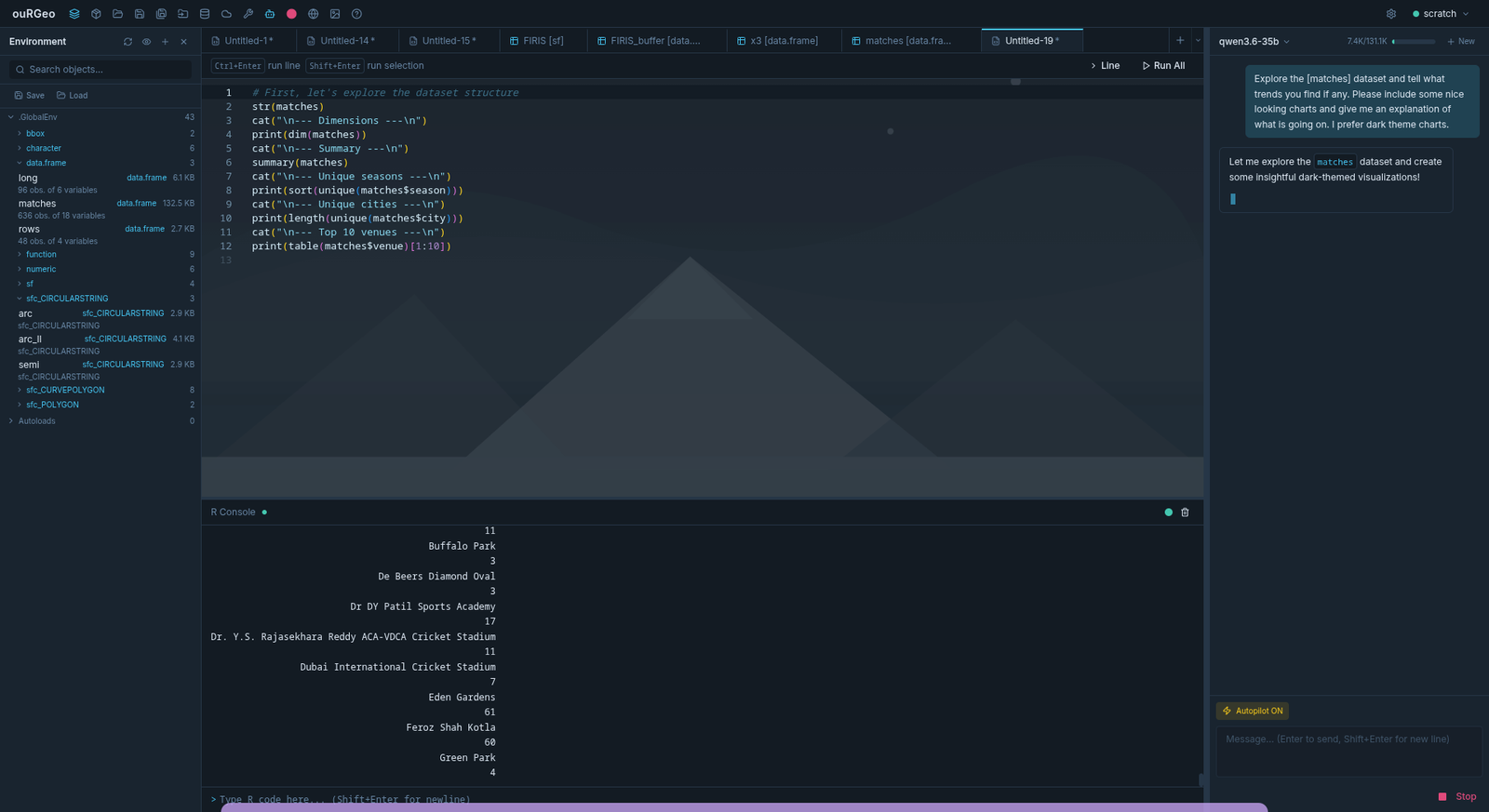
Autopilot’s output is not special: the code it runs is echoed to your console like any other action, so it is inspectable, editable and recordable.
The AI panel with Autopilot enabled, streaming R code inline.
The AI panel with Autopilot enabled — the agent writes and runs R, streaming its reasoning and code inline.

13 Help panel

R’s own documentation, in-app. No browser round trip, and it works offline.

Search functions & packages…
Searches help topics across your installed packages.
Back / Forward
Navigate your help history like a browser.
Home
Returns to the help index.

Package vignettes are available here too, rendered in the panel. Typing ?st_buffer at the console opens the topic here rather than in a browser.

14 Plugins and the plugin store

A plugin adds capability while the app is running — data connectors, toolbox tools, AI actions, toolbar buttons, docs topics, R libraries and whole panels. Manage them from Settings → Plugins.

Plugin Store…
Browse what other ouRGeo users have published, in the app or at ourgeo.dev/plugins. Every listing has been installed and run by a moderator before it appeared. Browsing is open to anyone; installing needs your free ourgeo.dev account — the same one the forum uses — because plugin downloads are not public.
Enabled
Each plugin is a switch. What you install arrives switched off: turning it on is when code starts running, and that stays your decision. If a plugin ever takes the app down, ouRGeo notices on the next launch, disables that one and says so.
Install from file
Opens a .ourgeoplugin archive somebody sent you. Archives are checked and bounded on the way in.
Updates
Checked once per session when you open this section or the store, with the author’s note about what changed. They are offered, never applied for you. A version withdrawn after you installed it is switched off, with the reason in the console.
Publish…
On a plugin you wrote: ouRGeo builds it, uploads it and puts it in the review queue. A moderator installs it, runs it, and either publishes it or sends it back with a note you can read. What people download is a built, minified bundle — your source is never published, and a plugin installed from the store cannot be exported or read back out of ouRGeo.
Reviews
Rate and review from the plugin’s page on the website. It takes having actually installed it — a rating from somebody who never ran the thing is an opinion about the description.
The AI assistant can search the store, read a listing and install from it (installing asks you to confirm, like any destructive action), and it will look there before offering to write you a plugin from scratch. It cannot enable what it installs, submit a plugin, or write a review — those publish under your name or change what runs.

15 Settings

One scrolling dialog of collapsible sections rather than tabs. Open it with the gear icon at the right of the toolbar. Appearance is expanded by default.

Appearance

Theme and visual style. Theming has three independent axes, each with its own picker in this section.

App theme
The whole interface — panels, buttons, borders, labels — plus the editor’s background, the artwork painted behind the code, and the basemap the Spatial Editor opens with. Ten ship with the app.
Code theme
Syntax colours only: R in .R files, and every embedded language inside an .Rmd chunk. 26 ship, from One Dark and Dracula to Nord, Solarized, Gruvbox and Catppuccin.
Markdown theme
Prose colours only: headings, links, quotes and inline code, in both Source and Visual mode. 16 ship.

The separation is a guarantee rather than a convenience. A code or markdown palette carries token colours and nothing else, so switching one can never move the editor background or the scene art behind it. Each app theme names the code and markdown palettes it starts with, and switching the app theme resets both to those — a dark syntax palette on a white background is not a coherent look. The two editor pickers are how you depart from the default, per app theme.

The ten app themes:

DarkBespin Neon LightsForest Midnight DreamCandy Addiction HeavenVolcanic ArcticRetro Terminal

Interface scale is separate from the theme and is changed with Ctrl+Shift+= and Ctrl+Shift+-.

Theme Studio

Settings → Appearance → Theme Studio… opens a full editor for themes of your own, on all three axes. It has a tab per axis, a list of your themes above the ones that ship, and a live preview that updates as you type without changing the running application — so you can look at a theme you have not switched to.

Every theme starts as a copy. There is no blank theme, on purpose: an app theme has sixteen colours, and starting from nothing produces something that clashes with whichever ones you forgot. Press New, pick the closest existing theme — one of ouRGeo’s or one of your own — name it, and change what you like. The themes that ship are read-only, because an ouRGeo update would overwrite an edit and leave nothing to reset to; Duplicate to edit is the way in.

Interface colours
Ten values: background, panel, border, accent, accent hover, muted text, success, warning, error and foreground. Each is labelled with what it actually paints, and carries a WCAG contrast warning when text would become hard to read against its own background.
Editor surface
Six more, kept separate because the shipped themes give the editor a slightly different surface from the panels around it: the editor background, the current-line highlight, indent guides, the caret and selection, line numbers, and editor text. Match the interface colours collapses the distinction in one click.
Editor palettes
Which code and markdown palette this app theme starts with — including palettes you made yourself.
Map
The basemap the Spatial Editor opens with under this theme. The basemap picker still overrides it for the session.
Artwork
Two optional images — see below.

A code or markdown theme is simpler: a name, whether it is listed for dark or light app themes, and its colours. A code palette has eleven (identifiers, comments, keywords, constants, strings, numbers, operators, functions, tags, delimiters, errors); a markdown palette has nine (body text, headings, emphasis, links, code, quotes, meta, HTML, escapes). Contrast is measured against the editor background of the app theme you are using, because that is the surface the palette will be read on — a palette carries no background of its own.

Your own artwork

An app theme can carry two images, both optional and both embedded in the theme rather than referenced by path — so an exported theme arrives on another machine with its pictures intact.

Editor backdrop
Painted behind the code editor, replacing the generated scene. PNG, JPEG, WebP, SVG, GIF or AVIF, up to 4 MB. Scaled to cover the panel, so a wide 16:9 image around 1600 × 900 fills it without the middle being cropped out. It has its own opacity and a grey-scale switch: the shipped scenes are drawn to be greyed to 15%, while a photograph of your own usually wants colour and a lower opacity. It sits under the text, so a calm, low-contrast image reads far better here than a busy one.
Theme card
The theme’s tile in the App Theme picker, cropped to 16:9 — 320 × 180 is plenty. Same formats, up to 1 MB. Leave it empty and the card uses the backdrop, or the scene ouRGeo generates from the theme’s own colours.

Sharing themes

Any theme you have made exports to a .ourgeotheme.json file — plain JSON, artwork and all — and imports back from one. The file declares which axis it belongs to, so an app theme dropped into the Code Themes list is refused with a sentence naming what the file actually is and which tab takes it, rather than a cryptic parse error. Files written by a newer version of ouRGeo, and files that are not themes at all, are turned away the same way.

The AI assistant can drive all of this: ask it for “a warm, low-contrast dark theme” and it will copy the closest one, adjust the colours, check its own contrast ratios, and switch you to it.

Workspace

Panel arrangement — dragging, saved layouts, and the way back. The one place that shows you the whole arrangement at once: which panel is in which zone, whether each zone splits or tabs, and which toolbar buttons appear and in what order. Add a second code editor or remove one here, save the arrangement as a named preset, export it as an .ourgeolayout.json file, or restore the default arrangement — which is what you want after moving something by accident. Panel dragging ships off; switching it on reveals a grip on every panel header, and with it a right-click menu to move, add or remove a panel.

Terminal

Which shell opens, and how it looks. Pick the shell new tabs start (your login shell by default), set the font size and cursor style, and choose whether the terminal gets its own pane beside the console or shares a tab strip with it. The pane setting reads the live layout, so a terminal you have dragged elsewhere honestly reads as off — it is beside nothing.

R Backend

Which R installation powers ouRGeo. ouRGeo detects the R installations on your machine and lists them; pick one and R restarts against it. If yours is not found, Browse for Rscript… points the app at a specific executable. Your choice is remembered. While scanning, the panel reads Detecting R installations…; if it finds none, No R installations detected. A successful switch confirms with R restarted successfully.

Spatial Editor

Map extent, drawing, and coordinate systems. Three sub-sections:

Initial Spatial Extent
The map view new sessions open at — so you are not starting at the whole globe every time if you always work in one region.
Drawing
Attribute popup for new features — whether finishing a drawn feature immediately prompts for its attribute values.
Coordinate Reference Systems
Default CRS for new geometry sets what freshly drawn layers are created in. Default calculation CRS (spatial tools) sets the fallback used by the nine tools that need planar maths — the one a tool means by Default (from Settings). Both offer a curated worldwide projection list plus Custom EPSG…. See Calculation CRS.

Documents

Markdown and R Markdown authoring. Settings for .md/.Rmd/.qmd documents, including which engine the Chunk: current map action generates — tmap, ggplot2, or whichever Export dialog you used last.

Basemaps

Access tokens for basemap tile providers. Providers that need an API key get a field here. Providers that do not need one work without any configuration.

Data API Keys

Keys for external data sources. For web-API providers in the Data Connector that require authentication. Most public open-data endpoints do not.

AI Assistant

AI provider and model configuration.

Provider
Which service or local runtime to use.
Base URL
The endpoint. This is what points ouRGeo at a model running on your own machine instead of a hosted one.
Default Model
The model used for new conversations. Fetched from the provider where it can be listed.
Context window (tokens)
How much conversation and session context to send. Lower it for a small local model, raise it for a large hosted one.

Voice input

Dictate to the assistant — microphone, and who transcribes it. Choose the input device and the transcription service. The default runs on your machine: ouRGeo downloads a speech model on first use and never sends the audio anywhere. Cloud services (OpenAI-compatible, Deepgram, ElevenLabs, AssemblyAI) are available and each upload is logged to the R console, so the console stays a complete record. Recorded audio is never written to disk.

Plugins

Capabilities added to ouRGeo without rebuilding it. The plugin list, the enable switches, Plugin Store…, install from file, and the update check. See Plugins and the plugin store.

Version history

A View version history action shows what changed in each release of ouRGeo.